12_Insert
Code-Dateien
| Dateiname | Aktion |
|---|---|
| CODECode_Bank.zip | Download |
| CODECode_Pizza.zip | Download |
| CODECode_Taxi.zip | Download |
| CODECode_Urlaub.zip | Download |
Videos
| Dateiname | Aktion |
|---|---|
| VIDEOVideo_Bank_D | Abspielen |
| VIDEOVideo_Pizza_E | Abspielen |
| VIDEOVideo_Taxi_D | Abspielen |
| VIDEOVideo_Urlaub_D | Abspielen |
Lernmaterialien
Insert Dialog
Button
    private final Button buttonAdd = new Button("Add order");

    public OrdersView(@Autowired PizzaOrderService pizzaOrderService) {
        buttonAdd.addClickListener(b -> addOrder());
Dialog
    private void addOrder() {
        Dialog dialog = new Dialog();
        dialog.setHeaderTitle("New Pizza Order");

        TextField pizza = new TextField("Pizza");
        ComboBox<String> size = new ComboBox<>("Size");
        size.setItems("Small", "Medium", "Large", "Family");

        NumberField price = new NumberField("Price");
        IntegerField quantity = new IntegerField("Quantity");
        Checkbox garlic = new Checkbox("Garlic");
        DatePicker "Add 1 Order" = new DatePicker("Order date");

        BeanValidationBinder<PizzaOrder> binder =
                new BeanValidationBinder<>(PizzaOrder.class);

        // Do not bind the Id Field!

        binder.forField(orderDate)
                .bind("orderDate");

        binder.forField(pizza)
                .bind("pizza");

        binder.forField(size)
                .bind("size");

        binder.forField(price)
                .bind("price");

        binder.forField(quantity)
                .bind("quantity");

        binder.forField(garlic)
                .bind("garlic");

        PizzaOrder order = new PizzaOrder();
        order.setOrderId();

        binder.setBean(order);

        VerticalLayout formLayout = new VerticalLayout(
                orderDate,
                pizza,
                size,
                price,
                quantity,
                garlic
        );

        Button saveButton = new Button("OK", event -> {
            if (binder.validate().isOk()) {
                pizzaOrderService.add(order);
                reload();
                dialog.close();
                Notification.show("Pizza order saved");
            } else {
                Notification.show("Check your input");
            }
        });

        Button cancelButton = new Button("Cancel",
                event -> dialog.close());

        dialog.add(formLayout);
        dialog.getFooter().add(cancelButton, saveButton);

        dialog.open();
    }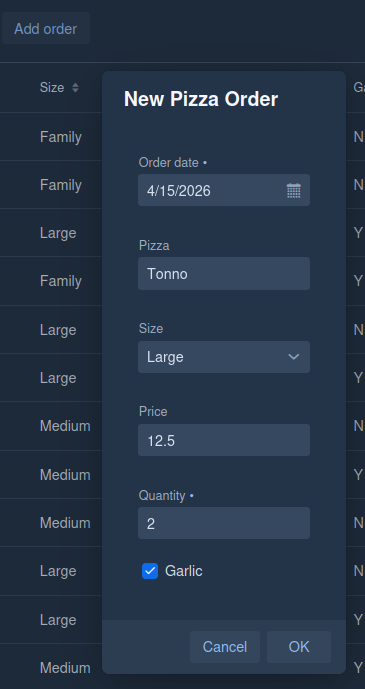
This method opens a Vaadin popup dialog where the
user can enter a new PizzaOrder.
private void addOrder() {Defines a private method, called when the user clicks a button like “New Order”.
Dialog dialog = new Dialog();
dialog.setHeaderTitle("New Pizza Order");
Creates a popup window and sets its title.
TextField pizza = new TextField("Pizza");
ComboBox<String> size = new ComboBox<>("Size");
size.setItems("Small", "Medium", "Large", "Family");
Creates input fields.
size is a dropdown, so the user can only select one of the
valid values.
NumberField price = new NumberField("Price");
IntegerField quantity = new IntegerField("Quantity");
Checkbox garlic = new Checkbox("Garlic");
DatePicker orderDate = new DatePicker("Order date");
More fields for the order:
price as decimal number
quantity as integer
garlic as yes/no checkbox
order date as date picker
BeanValidationBinder<PizzaOrder> binder =
        new BeanValidationBinder<>(PizzaOrder.class);
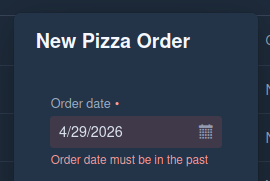
Creates a Vaadin Binder for PizzaOrder.
Important: BeanValidationBinder reads your annotations
like:
@NotBlank
@DecimalMin
@DecimalMax
@Pattern
@NotNull
from the PizzaOrder class.
binder.forField(orderDate).bind("orderDate");
binder.forField(pizza).bind("pizza");
binder.forField(size).bind("size");
binder.forField(price).bind("price");
binder.forField(quantity).bind("quantity");
binder.forField(garlic).bind("garlic");
Connects each UI field to one attribute of
PizzaOrder.
Example:
binder.forField(price).bind("price");means:
The
pricefield in the dialog belongs to thepriceattribute inPizzaOrder.
So Vaadin knows where to read/write values.
PizzaOrder order = new PizzaOrder();
order.setOrderId();
Creates a new empty order and gives it a new ID.
binder.setBean(order);In Java, a “bean” (often called a JavaBean) is simply a plain object used to hold data, following a few conventions. A bean is a class with private fields and public getters/setters
Connects the new PizzaOrder object to the form.
From now on:
form fields write into
ordervalidation checks
ordererror messages come from Bean Validation
VerticalLayout formLayout = new VerticalLayout(
        orderDate,
        pizza,
        size,
        price,
        quantity,
        garlic
);
Puts all fields vertically inside the dialog.
        Button saveButton = new Button("OK", event -> {
            if (binder.validate().isOk()) {
                pizzaOrderService.add(order);
                reload();
                dialog.close();
                Notification.show("Pizza order saved");
            } else {
                Notification.show("Check your input");
            }
        });
This creates an OK button and defines what happens when the user clicks it.
Button saveButton = new Button("OK", event -> {Creates a Vaadin button with the text OK.
The code inside { ... } runs on click.
if (binder.validate().isOk()) {Checks the form with Bean Validation.
Example checks:
pizza is not blank
size is valid
price is between 8 and 30
quantity is between 1 and 20
If everything is valid:
pizzaOrderService.add(order);Adds/saves the new pizza order.
reload();Reloads the data, usually so the grid/table shows the new order.
dialog.close();Closes the popup dialog.
Notification.show("Pizza order saved");Shows a short success message.
If validation fails:
Notification.show("Check your input");Shows an error message. The invalid fields should also display their Bean Validation messages.
Button cancelButton = new Button("Cancel",
event -> dialog.close());dialog.add(formLayout);Adds the form fields to the dialog body.
dialog.getFooter().add(cancelButton, saveButton);Adds the Cancel and OK/Save buttons to the dialog footer.
dialog.open();Shows the dialog on the screen.
In short: add form, add buttons, show popup.