09_Grid_Manuell
Code-Dateien
| Dateiname | Aktion |
|---|---|
| CODECode_Bank.zip | Download |
| CODECode_Pizza.zip | Download |
| CODECode_Taxi.zip | Download |
| CODECode_Urlaub.zip | Download |
Videos
| Dateiname | Aktion |
|---|---|
| VIDEOVideo_Bank_D | Abspielen |
| VIDEOVideo_Pizza_E | Abspielen |
| VIDEOVideo_Taxi_D | Abspielen |
| VIDEOVideo_Urlaub_D | Abspielen |
Lernmaterialien
No automatic columns
autoCreateColumn = false
private final Grid<Urlaub> grid = new Grid<>(Urlaub.class, false);autoCreateColumn = false
- Means: NO automatic columns
Vaadin will NOT create columns like:
- orderId
- pizza
- price
- etc.
add simple columns
        grid.addColumn(o -> o.getOrderId())
                .setHeader("Order ID")
                .setSortable(true);
        grid.addColumn(o -> o.getOrderDate())
                .setHeader("Order Date")
                .setSortable(true);
        grid.addColumn(o -> o.getPizza())
                .setHeader("Pizza")
                .setSortable(true);
        grid.addColumn(o -> o.getSize())
                .setHeader("Size")
                .setSortable(true);
        grid.addColumn(o -> o.getQuantity())
                .setHeader("Quantity")
                .setSortable(true);
        grid.addColumn(o -> {return o.getGarlic() ? "Y" : "N";})
                .setHeader("Garlic")
                .setSortable(true);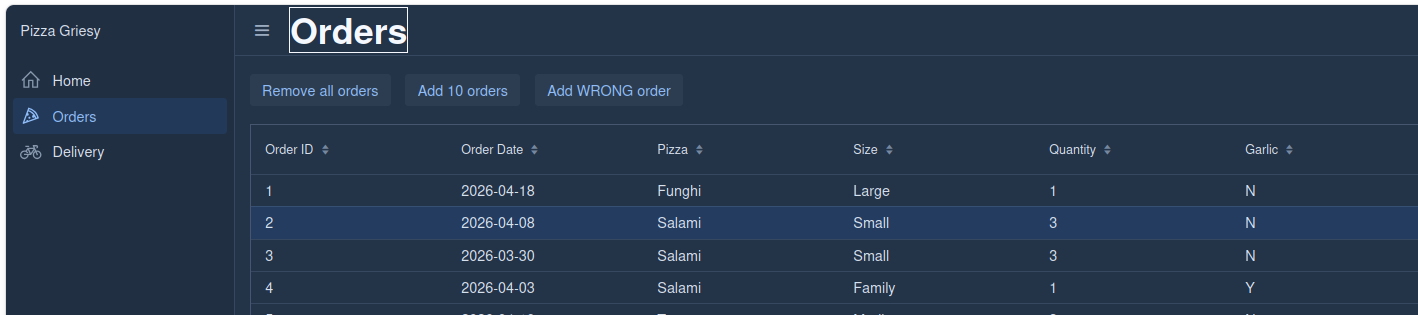
grid.addColumn(o -> o.getOrderId())
- Adds a new column to the Grid
o= onePizzaOrderobject (one row)
👉 For each row:
o.getOrderId() is called → value is shown in the
cell
✅ Equivalent to:
grid.addColumn(PizzaOrder::getOrderId);
.setHeader("Order ID")
- Sets the column title (header text)
👉 The column will display:
Order ID instead of something like orderId
.setSortable(true)
- Enables sorting on this column
👉 User can click the column header:
- first click → ascending
- second click → descending
add CheckBox
        grid.addComponentColumn(pizzaOrder -> {
            Checkbox cb = new Checkbox(pizzaOrder.getGarlic());
            cb.setReadOnly(true);
            return cb;
        })
                .setHeader("Garlic")
                .setSortable(true)
                .setComparator(o -> o.getGarlic());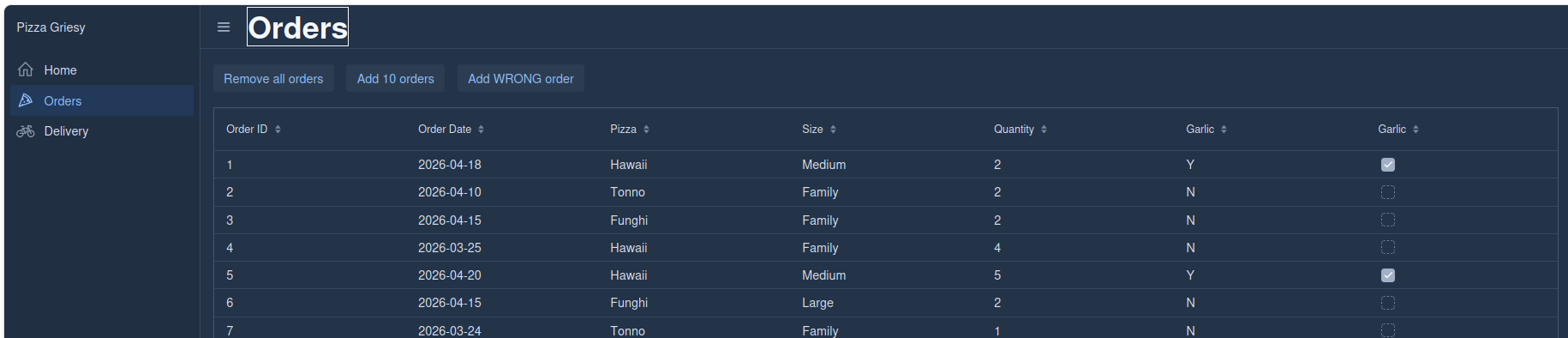
addComponentColumn(pizzaOrder -> { ... })
- Adds a column that displays components (Checkbox)
pizzaOrder= one row (onePizzaOrderobject)
👉 This lambda replaces the old ValueProvider
Create the Checkbox
Checkbox cb = new Checkbox(pizzaOrder.getGarlic());
- Reads
garlic(true/false) - Creates a checkbox with that value
👉 Result:
- true → ☑
- false → ☐
cb.setReadOnly(true);
- Makes the checkbox non-editable
- User cannot change it
👉 It’s only for display
return cb;
- Returns the component
- Vaadin places it into the grid cell
.setHeader("Garlic")
- Sets column title
👉 Column name = Garlic
.setSortable(true)
- Enables sorting when clicking the column header
👉 BUT:
- Grid doesn’t know how to sort a Checkbox
.setComparator(o -> o.getGarlic())
This is the important part 👇
👉 Tells Vaadin how to sort the rows
o= onePizzaOrdero.getGarlic()returnstrueorfalse
👉 Sorting result:
falsefirsttrueafter
Why comparator is needed
Without it:
- ❌ Sorting might not work correctly
- ❌ Vaadin cannot compare Checkbox components
With it:
- ✅ Sorting is based on the actual data (
garlic)
add header incl image
        Image p = new Image("icons/pizza.png", "Pizza");
        p.setWidth("64px");
        grid.addColumn(o -> o.getSize())
                .setHeader(new HorizontalLayout(p, new Span("Size")))
                .setSortable(true);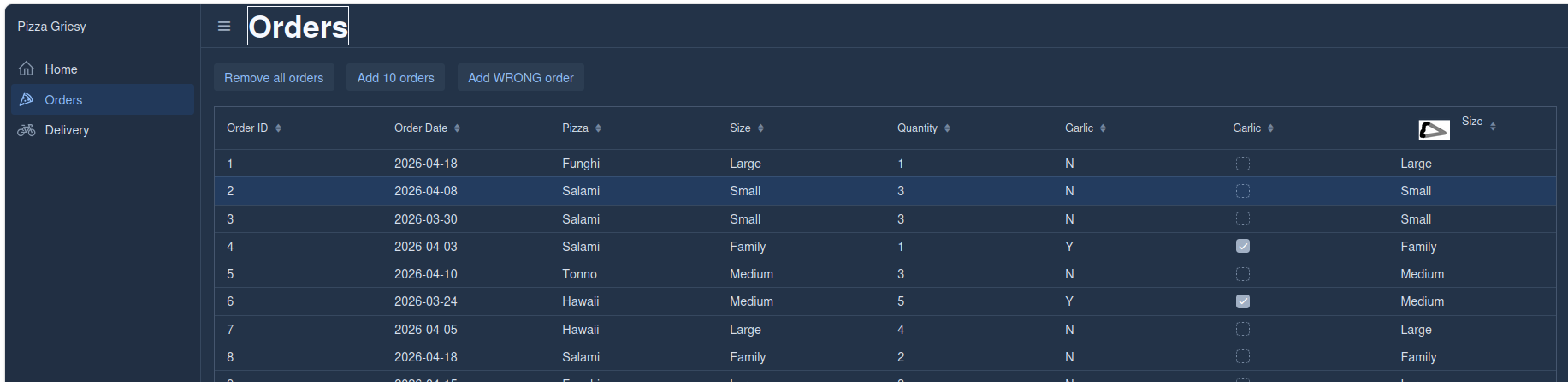
Create an image
Image p = new Image(“icons/pizza.png”, “Pizza”);
Loads an image from:
frontend/icons/pizza.png
"Pizza"= alternative text (for accessibility)
Set image size
p.setWidth(“64px”);
- Image width = 64 pixels
Add a column
grid.addColumn(o -> o.getSize())
- Adds a column to the Grid
o= onePizzaOrder
👉 Shows:
o.getSize()
Example values:
- Small
- Medium
- Large
Custom header
.setHeader(new HorizontalLayout(p, new Span(“Size”)))
- Instead of plain text → uses a layout
- Combines:
- 🖼 image (
p) - 📝 text (
"Size")
- 🖼 image (
👉 Header looks like:
[🍕 image] Size
Enable sorting
.setSortable(true);
- User can click the header
- Grid sorts by
size